Get Started!
Adding video files to the Add/Edit Photo(s)/Video Tab
While only one video file can be uploaded to Add/Edit, one additional URL for either a video or virtual tour (e.g., /virtualtourprovider.com/) can also be loaded. If you are adding a URL to a virtual tour, the process has not changed. However, video files must be added in the Photos(s)/Video tab and upload times will vary depending on the length and file size for your video and your available internet bandwidth.Adding a Video to Your Listing
To add a video to your listing:- In the Media tab, click the blue circle with the plus sign (+) in the lower right corner of the screen.

- Select the video button.

- Select Click to select a video.
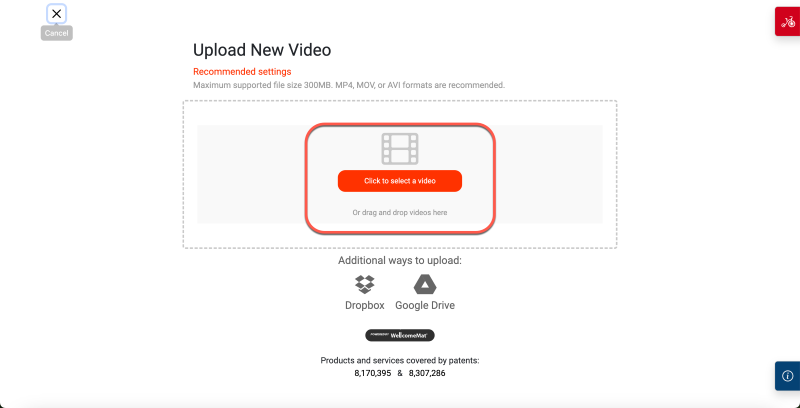
- Select the video to upload or drag-and-drop the video into the uploader. A visual indicator of upload progress will display. Before the upload is complete, you can cancel it.
- The video will appear on the Photos/Video page, displaying its current status. Once the video is completely processed (“Active”) it is ready for use and may be edited further.
Note: If there is already a video uploaded, the add button will display “Manage Video” instead of “Add Video.” From there a user may replace or delete the existing video.
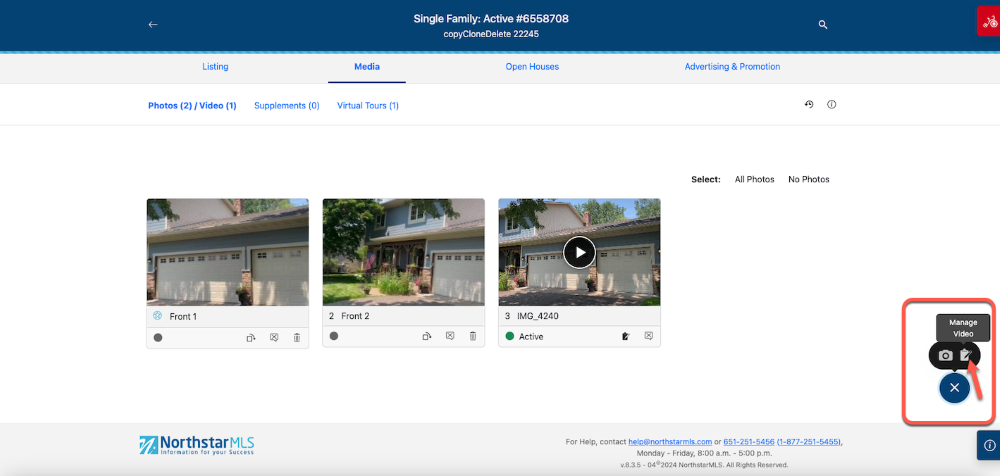
Managing a Video
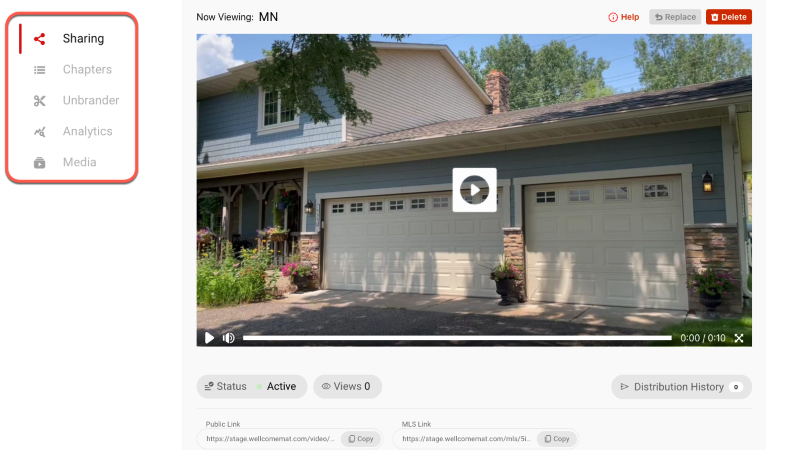
The “Manage Video” button will launch the WellcomeMat overlay which provides the following functionality:Sharing: The status, distribution history, public video link and MLS video link are located here. Users can also view the uploaded video via this tab. This page allows users to replace their video or delete their video as well.
Unbrander: This allows you to remove sections of uploaded video to remove branding.
Analytics: This is where statistics regarding the uploaded video (such as total views over time) are displayed.
Media: Here is where downloadable screenshots can be pulled from the uploaded video.
 After your video is uploaded use these Add/Edit tools to manage your video:
Captioning: The speech bubble with an “x” deletes the video’s caption. A user can also edit the caption by clicking into the gray caption bar.
History: This button will open an overlay that displays the most recent changes, who made them, and at what time/day. Any video uploaded will display the user on record as “Wellcomemat.”
Slideshow View: Photos are able to be viewed within the slideshow view by clicking on any thumbnail card. It will display each photo (video excluded), in order, in a larger format. A user may also edit their photo Title/Description within this view.
